
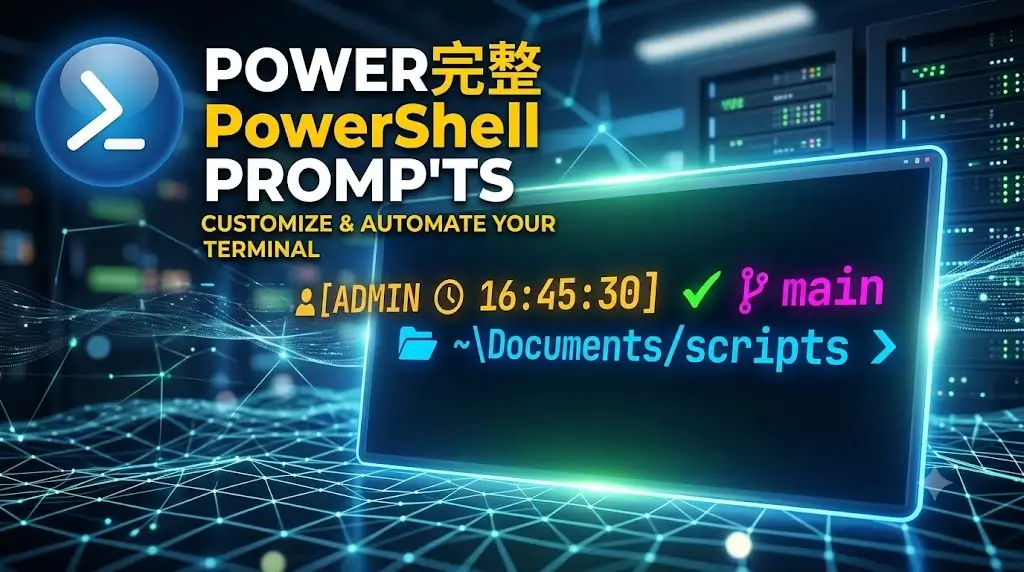
Have you ever looked at that plain, static blue screen in your Windows console and wondered why your workspace feels like it was designed in 1995? Every single day, system administrators, cloud engineers, and developers spend hours typing commands into a interface that gives them zero feedback until something breaks. By default, PowerShell prompts display a basic file path like PS C:\Users\Username>. But your terminal can do so much more. Imagine looking at your command line and instantly knowing if you are connected to Azure, which Git branch you are currently editing, whether your last command failed, or if you are accidentally running commands with full Administrator rights before you execute a destructive script.
Customizing your PowerShell prompt turns a simple command interface into a real-time status dashboard. In this comprehensive guide based on official Microsoft documentation, you will learn how PowerShell prompts work under the hood, how to write your own prompt functions from scratch, how to leverage modern AI tools, and how to implement security best practices.
What is a PowerShell Prompt and How Does It Work?
In Microsoft PowerShell, the prompt is not just a hardcoded text string. It is a built-in function named prompt. Every time you execute a command or press Enter, PowerShell automatically calls this function and outputs the returned string or object to the console screen.
┌───────────────────────────────────────────────────────────┐
│              PowerShell Execution Loop                    │
├───────────────────────────────────────────────────────────┤
│  1. User presses Enter (or command finishes)             │
│  2. PowerShell calls the built-in 'prompt' function        │
│  3. Function evaluates context (Path, Admin, Git, Time)  │
│  4. Prompt string renders on screen                        │
│  5. Console waits for user input                          │
└───────────────────────────────────────────────────────────┘
Because the prompt is driven by a standard PowerShell function, you can write any valid C# or PowerShell code inside it. You can fetch system metrics, check network latency, query environmental variables, or check git status dynamically.
Default PowerShell Prompt Definition
By default, Microsoft defines the standard prompt function in PowerShell like this:
function prompt {
    "PS $($executionContext.SessionState.Path.CurrentLocation)$('>' * ($nestedPromptLevel + 1)) "
}
This default code performs three basic tasks:
Adds the prefix
PS.Evaluates the current working path using
$executionContext.Appends one or more
>characters depending on your nested prompt level.
Types of PowerShell Prompts
Depending on your environment and how you configure your terminal host, you will encounter several distinct categories of prompts:
| Prompt Type | Description | Primary Use Case |
| Default File System | Standard path display (PS C:\>) | Out-of-the-box local management |
| Elevated (Administrator) | Displays visual cues when running as Admin | Preventing accidental system changes |
| Nested Prompt | Displays >> or >>> during paused scripts or debug points | Script debugging and interactive inspection |
| Remote (PSSession) | Prepends target machine name (e.g., [Server01]: PS C:\>) | Managing remote servers safely |
| Theme-Engine Prompt | Uses engines like Oh My Posh and Powerline fonts | Advanced developer workflows & status indicators |
PowerShell Prompt Examples: From Basic to Advanced
Let’s move from simple modifications to advanced configurations you can paste directly into your PowerShell profile.
1. The Beginner Prompt: Clean & Minimalist
If you deal with deeply nested directory structures, your standard prompt can quickly swallow up half your screen width. This minimal prompt truncates your path to show only the active folder name.
function prompt {
    $folder = Split-Path -Path (Get-Location) -Leaf
    return "PS [$folder]> "
}
Result: PS [Documents]>
2. The Administrator-Aware Prompt
Running commands as Administrator by mistake can lead to unintended system modifications. This prompt checks if your current session has elevated privileges and adds a red [ADMIN] tag if true.
function prompt {
    $identity = [Security.Principal.WindowsIdentity]::GetCurrent()
    $principal = [Security.Principal.WindowsPrincipal]$identity
    $isAdmin = $principal.IsInRole([Security.Principal.WindowsBuiltInRole]::Administrator)

    $adminTag = if ($isAdmin) { " [ADMIN]" } else { "" }

    # Using ANSI escape sequences for coloring
    $esc = [char]27
    $red = "$esc[31m"
    $reset = "$esc[0m"

    if ($isAdmin) {
        return "PS $red$adminTag$reset $(Get-Location)> "
    } else {
        return "PS $(Get-Location)> "
    }
}
3. The Advanced Developer Prompt (Timestamp + Execution Status)
For cloud automation and software development, knowing how long commands take and whether they succeeded is critical. This prompt displays a timestamp and turns green on command success or red on failure.
function prompt {
    $lastError = $? # Holds boolean state of last command
    $time = Get-Date -Format "HH:mm:ss"
    $path = Get-Location

    $esc = [char]27
    $statusColor = if ($lastError) { "$esc[32m" } else { "$esc[31m" } # Green if true, Red if false
    $reset = "$esc[0m"

    return "[$time] $statusColor$path$reset`n> "
}
AI PowerShell Prompts: Enhancing Your Workflow
With the arrival of command-line AI integrations—such as GitHub Copilot in CLI or Microsoft Azure OpenAI modules—the term PowerShell Prompts now also refers to natural language prompts used to generate administrative code.
Pro Tip: When prompting AI tools to generate PowerShell code, always specify the target PowerShell version (e.g., PowerShell 7.4+ core vs. Windows PowerShell 5.1) to avoid incompatible syntax or deprecated cmdlets.
Examples of Effective AI Prompts for PowerShell
For Scripting: “Act as a Senior Systems Administrator. Write a idempotent PowerShell 7 script to clean up log files older than 30 days in C:\Logs, including error handling and logging to Event Viewer.”
For Terminal Customization: “Write a PowerShell prompt function that displays the current AWS profile, current Kubernetes context, and truncates paths longer than 3 characters.”
Automating Your Prompt Customization via Profiles
If you type a custom function prompt directly into your terminal window, it disappears the moment you close the console. To make your custom PowerShell prompts permanent across all sessions, you must save them inside your PowerShell Profile script.
Numbered Steps to Set Up Your Custom Prompt Profile
Check if a profile script already exists:
PowerShellTest-Path -Path $PROFILECreate the profile file if it returns
False:PowerShellNew-Item -Path $PROFILE -ItemType File -ForceOpen the profile script in your editor:
PowerShellnotepad $PROFILE # Or using VS Code code $PROFILEPaste your custom
function promptinto the file and save.Reload your profile to apply changes instantly:
PowerShell. $PROFILE
Security Best Practices for Custom PowerShell Prompts
Customizing your prompt is powerful, but because the prompt function runs automatically after every single command, bad code inside it can slow down your system or expose security vulnerabilities.
Warning: Never put network calls, slow disk-scanning operations, or credentials inside your
promptfunction. Doing so can cause severe terminal lag or leak sensitive data.
Crucial Security Checkpoints
Script Execution Policies: If your system blocks profile loading, set your execution policy to a secure level like
RemoteSignedrather thanUnrestricted:PowerShellSet-ExecutionPolicy -ExecutionPolicy RemoteSigned -Scope CurrentUserAvoid Plain-Text Secrets: If your prompt queries cloud subscriptions or API status, never hardcode authentication keys inside your profile script. Use secure token caches or secret store modules.
Limit External Executables: Calling external binary tools (like
git.exeorkubectl.exe) directly inside your prompt can freeze your terminal if those tools hang or take too long to respond.
Troubleshooting & Common Mistakes
Mistake 1: Prompt Causes Sluggish Console Performance
Cause: Running heavy cmdlets like
Get-Processor querying remote network shares inside thepromptfunction.Solution: Keep prompt computations purely local and lightweight using
$executionContextor memory variables.
Mistake 2: Missing Characters or Weird Boxes
Cause: Using modern theme engines (like Oh My Posh) with standard fonts that lack glyph support.
Solution: Install and configure a Nerd Font (such as CaskaydiaCove Nerd Font) inside your Windows Terminal settings.
Mistake 3: How to Restore the Default PowerShell Prompt
If your custom prompt breaks or throws continuous errors, you can immediately reset it back to the Microsoft default during your active session by running:
Remove-Item -Path function:\prompt
Frequently Asked Questions (FAQs)
What is the default PowerShell prompt function?
The default prompt function returns PS followed by your current working directory and a trailing > character. It relies on $executionContext.SessionState.Path.CurrentLocation.
How do I change my PowerShell prompt color?
You can use ANSI escape sequences (e.g., [char]27 + "[31m" for red) in PowerShell 7+, or use $Host.UI.RawUI.ForegroundColor in older versions of Windows PowerShell.
Does modifying my prompt slow down script execution?
No. Custom prompt functions only execute during interactive console sessions. Non-interactive scripts run in the background without triggering the interactive prompt function.
Can I display Git branch information in my PowerShell prompt?
Yes. You can parse Git status manually inside your prompt function or use popular prompt modules like Posh-Git or Oh My Posh.
What is Oh My Posh?
Oh My Posh is a custom prompt theme engine for any shell. It allows you to create visual terminal prompts complete with icons, git status indicators, cloud contexts, and color themes.
How do I hide the full path in my PowerShell prompt?
You can use Split-Path -Leaf (Get-Location) inside your prompt function to display only the current folder name instead of the entire drive path.
Why is my PowerShell profile script not loading?
Your PowerShell Execution Policy might be blocking unsigned scripts. Check your policy using Get-ExecutionPolicy and update it using Set-ExecutionPolicy RemoteSigned -Scope CurrentUser.
Is PowerShell prompt customization supported on macOS and Linux?
Yes. PowerShell core (pwsh) uses the exact same function prompt mechanics across Windows, macOS, and Linux distributions.
What is the difference between Windows PowerShell and PowerShell 7 prompts?
While the fundamental syntax is identical, PowerShell 7 supports modern ANSI escape codes natively for RGB colors and rendering, whereas Windows PowerShell 5.1 often requires legacy host calls.
Can a corrupted prompt break my PowerShell console?
No. Even if your custom prompt function crashes with errors, you can still type commands. You can clear the broken function at any time by running Remove-Item function:\prompt.
Also Read…
- Best AI Tools for VMware Engineers: Top Picks for 2026
- Mastering Linux Management with Advanced ChatGPT Prompts: A Comprehensive Administrator’s Guide
- How to Auto Execute Commands and Scripts at Reboot or Startup on Linux
- How to Use Cron Jobs in Linux for Easy Automation
- Top 10 Linux Distros For Beginners
- Genie 3: Google DeepMind’s Breakthrough in Interactive AI World Models