
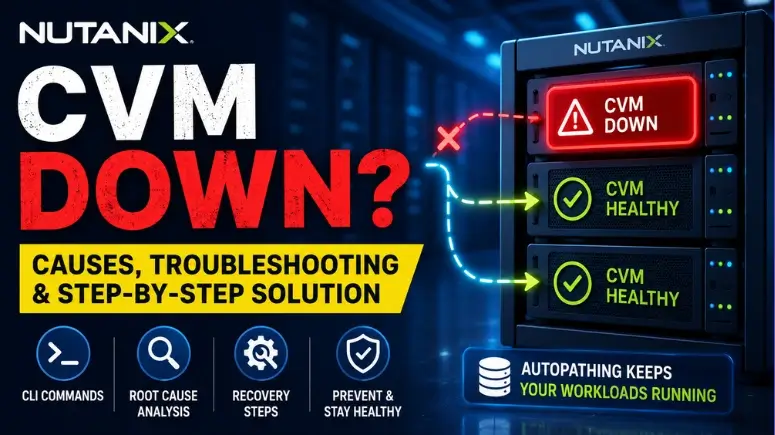
When a single Nutanix Controller VM (Nutanix CVM Down) goes down, the guest VMs running on that hypervisor host normally continue operating because Nutanix can redirect storage I/O to another active CVM through Storage High Availability (HA) and Autopathing. Metadata resilience is maintained through the distributed Cassandra ring as long as the remaining cluster has sufficient quorum and fault tolerance. The main symptoms can be increased storage latency and reduced administrative availability if the failed CVM was holding important service roles. The first priority is therefore to determine whether only one CVM service has failed or whether the entire CVM is offline.
Important: A CVM outage does not automatically mean that workloads have stopped. However, you should treat the alert seriously and verify cluster health before attempting a manual restart.
Key Takeaways
- A single CVM failure can often be tolerated without immediate guest VM downtime.
- Nutanix Autopathing can redirect storage I/O through another active CVM.
- Start troubleshooting with
cluster status,cvm_services_status, andgenesis status. - Genesis is particularly important because it manages the startup and monitoring of other Nutanix services.
- Check Cassandra, Zookeeper, Stargate, and Acropolis when investigating service-level failures.
- A full
/homefilesystem is a major CVM stability concern because services need available disk space for logs, databases and other files. - Memory pressure, hypervisor reboots and network/VLAN problems can also make a CVM appear offline.
- Do not reboot a CVM blindly. First establish whether the cluster can tolerate the failure and whether another CVM is already unhealthy.
- If the CVM is still reachable, a service-level recovery may be preferable to a full CVM reboot.
1. What Happens When a Nutanix CVM Goes Down?
A Nutanix CVM is central to the storage services running on each node. It provides the software layer that allows the hypervisor to access the distributed Nutanix storage fabric.
When you see Nutanix CVM Down, the first question should be:
Is the CVM itself offline, or are only one or more Nutanix services down?
That distinction changes the troubleshooting path.
In my experience with HCI incidents, this is one of the most useful distinctions to make early. A CVM can sometimes be reachable through SSH while a critical service such as Stargate or Genesis is unhealthy. Treating every service failure as a complete CVM failure can lead to unnecessary reboots.
Single-CVM Failure
When one CVM becomes unavailable, the local hypervisor can redirect storage traffic through the Nutanix internal network to an active CVM on another node.
The reference material describes this as Autopathing, where storage I/O is redirected to a neighboring active CVM.
That means:
User VM → Hypervisor → local CVM unavailable → internal network → active CVM → Nutanix storage
The workload may continue running, although storage latency can increase because I/O is no longer taking the preferred local path.
Visual Description Prompt
Insert diagram:
“Enterprise Nutanix cluster with three nodes. Show User VMs connected to their local CVMs. Mark one CVM as DOWN and visually route its storage I/O through the top-of-rack network to an active CVM on the neighboring node. Clearly label Hypervisor, CVM, User VM, Autopathing and Storage I/O.”
What About Multiple CVMs Going Down?
Multiple simultaneous CVM failures are considerably more serious.
The cluster’s ability to continue operating depends on its redundancy configuration, available nodes and metadata quorum. For example, the supplied reference notes that losing two CVMs in an RF2 scenario can cause loss of metadata quorum and potentially leave workloads unable to continue normally.
Therefore, never assume:
“One CVM is already down, so rebooting another CVM is harmless.”
Before restarting anything, establish the current cluster fault-tolerance state.
Nutanix CVM Down vs. Host Down
A CVM failure and a physical hypervisor-host failure are not the same incident.
| Attribute | CVM Offline | Physical Host Offline |
|---|---|---|
| Guest VMs | Usually continue running | May stop or restart elsewhere |
| Storage path | Can be redirected to another CVM | Storage is recovered through remaining cluster nodes |
| Typical Prism symptom | CVM/service alert | Node/host unavailable |
| Likely recovery | Restore CVM/services | Restore host or hardware |
| Immediate concern | Service health and I/O locality | Node availability and workload placement |
| Troubleshooting focus | Genesis, Stargate, Cassandra, networking, disk | Hypervisor, hardware, power, networking |
The supplied reference also distinguishes these two failure modes by their storage and recovery behavior.
2. Immediate Triage: Step-by-Step CLI Commands
When a Nutanix CVM Down alert appears, resist the temptation to immediately reboot the CVM.
First, connect to a healthy CVM using SSH and determine what the cluster sees.
Step 1: Check Nutanix Cluster Status
Start with:
cluster statusThis gives you a high-level view of core services across the cluster.
If the issue appears isolated to a particular CVM, also run:
cvm_services_statusThe supplied reference specifically identifies cluster status as the initial cluster-level check and cvm_services_status as the lightweight service check for a CVM.
What Are You Looking For?
Look for:
- Services showing DOWN
- Services repeatedly restarting
- A CVM that does not respond
- Multiple CVMs with problems
- Evidence that the issue is service-specific rather than an entire CVM outage
3. Check Genesis Status
Genesis is one of the first services to investigate.
Run:
genesis statusGenesis is responsible for starting and monitoring other Nutanix services. If Genesis itself is unhealthy, several dependent services may also appear down.
A CVM with a Genesis problem can therefore look much worse than an isolated service failure.
4. Check the Core Nutanix Services
When reviewing service status, pay particular attention to:
Cassandra
Cassandra provides distributed metadata storage.
A Cassandra problem can have a much wider impact than a single application service because metadata availability is fundamental to cluster operation.
Zookeeper
Zookeeper participates in cluster coordination, configuration and leader-election functions.
Stargate
Stargate is closely associated with the Nutanix storage I/O path. Problems here can directly affect storage performance and availability.
Acropolis
Acropolis provides important VM lifecycle and management functionality.
The supplied reference identifies these four services as key services to inspect during CVM troubleshooting.
5. Run Nutanix Cluster Check (NCC)
If the CVM remains accessible, run:
ncc health_checks run_allThis provides a broader health assessment of the Nutanix environment.
For a more focused investigation, the reference material provides:
ncc health_checks system_checks cvm_autopath_checkand:
ncc health_checks hardware_checks disk_checks slot_checkThese checks can help determine whether Autopathing, hardware or disk-related conditions are contributing to the incident.
Practical Tip
During a production incident, don’t just look for a single red result. Look at the overall fault-tolerance picture.
A single CVM being down is one problem.
A CVM being down while another node is degraded is a much more dangerous situation.
6. Inspect Nutanix Logs
If the CVM is reachable, inspect the logs before making disruptive changes.
Move to the Nutanix log directory:
cd /home/nutanix/data/logs/Check recent Genesis messages:
tail -n 100 genesis.outCheck recent Stargate messages:
tail -n 100 stargate.outThe supplied reference identifies /home/nutanix/data/logs/ as the relevant logging location and recommends reviewing Genesis and Stargate output during triage.
Visual Description Prompt
Insert screenshot:
“Terminal screenshot showing a Nutanix CVM SSH session with cluster status, cvm_services_status, and genesis status output. Highlight DOWN services and show how an administrator identifies the affected CVM without exposing IP addresses, usernames or credentials.”
7. Root Cause Analysis: Why Did the Nutanix CVM Go Down?
Finding the immediate symptom is only half the job.
If you simply restart the CVM without identifying the cause, the same problem can return.
The supplied reference highlights four major areas:
/homefilesystem exhaustion- Memory pressure/OOM
- Hypervisor or host reboot
- Network split-brain/VLAN problems
Let’s examine each.
7.1 /home Partition at 100%
One of the first checks I make during a CVM incident is disk utilization.
Run:
df -h /homeIf /home is completely full, services may fail because they can no longer write required logs, database information or other runtime files.
The supplied material specifically highlights /home capacity as a major CVM stability issue.
Important Warning
Do not randomly delete files from the CVM filesystem just to make space.
The reference recommends following the appropriate Nutanix procedure for removing old logs and core dumps rather than manually deleting unrelated system files.
7.2 Memory Pressure and OOM
A CVM can also become unstable when memory pressure becomes severe.
Services such as Stargate and Cassandra can require substantial memory depending on the workload and enabled features.
Check for evidence of an OOM event:
grep -i "out of memory" /var/log/messagesThe supplied material specifically recommends looking for OOM-killer activity when investigating memory-related CVM failures.
If you repeatedly see memory exhaustion, don’t treat restarting the CVM as the permanent fix. Investigate CVM sizing, workload changes and enabled Nutanix features.
7.3 Underlying Hypervisor Reboot
Sometimes the CVM is not the original problem.
The physical host or hypervisor may have rebooted first.
Examples include:
- Hypervisor kernel failure
- Hardware problem
- Unexpected power event
- Host crash
- Hypervisor maintenance/reboot
A CVM running on that host will naturally disappear when its underlying host becomes unavailable.
The supplied reference recommends cross-checking the underlying host state rather than assuming that the CVM itself caused the incident.
7.4 Network or VLAN Problems
Nutanix CVMs depend heavily on reliable internal cluster communication.
A switch, VLAN, vSwitch or trunking problem can prevent CVMs from communicating correctly.
Potential symptoms include:
- CVM appears unreachable
- Cluster services lose quorum
- Zookeeper communication problems
- Intermittent service failures
- Multiple CVMs appearing unhealthy
- Unexpected service shutdowns
The supplied reference specifically identifies vSwitch configuration, dropped VLAN tags and internal communication problems as possible causes of CVM instability.
Visual Description Prompt
Insert network troubleshooting diagram:
“Three-node Nutanix cluster connected to redundant top-of-rack switches. Show the internal CVM communication network and highlight a VLAN/trunking failure that isolates one CVM. Label Zookeeper communication, Cassandra quorum and CVM-to-CVM traffic.”
8. Safe Nutanix CVM Recovery and Restart
This is the section where caution matters most.
Before restarting anything, verify that the cluster can tolerate the current failure.
The supplied reference explicitly warns administrators to verify cluster health before manually restarting a service or CVM.
Step 1: Verify Metadata/Cluster Health
The reference suggests checking the Cassandra ring from a healthy CVM:
nodetool -h 127.0.0.1 ringThe expected healthy state is that participating nodes report UN — Up/Normal.
Do not proceed casually if additional CVMs are already showing a DOWN state.
Operational rule: If you already have one CVM down, investigate whether another CVM, host or critical service is also unhealthy before restarting the first one.
9. Soft Recovery: Restart Genesis
If the CVM operating system is still accessible but Nutanix services are stuck, a service-level recovery may be appropriate.
The supplied reference gives:
genesis restartGenesis can then re-evaluate and restart dependent Nutanix services.
After allowing time for services to initialize, check:
cvm_services_statusThe reference recommends allowing approximately 3–5 minutes before checking the resulting service state.
Do Not Rush This Step
A service restarting does not necessarily mean the cluster has immediately returned to a healthy state.
Continue monitoring:
cluster statusand:
cvm_services_statusThen verify the relevant NCC checks.
10. When a Full CVM Reboot Is Necessary
If the CVM operating system itself is unresponsive, a controlled reboot may become necessary.
However, the exact procedure depends on the Nutanix/AHV environment, AOS version, hypervisor configuration and operational state.
For AHV environments, the supplied reference describes placing the host into maintenance mode before a controlled CVM reboot:
acli host.enter_maintenance_mode <HOST_IP>It then shows:
sudo rebootAfter the CVM returns, verify Autopathing:
ncc health_checks system_checks cvm_autopath_checkand, where appropriate, exit maintenance mode:
acli host.exit_maintenance_mode <HOST_IP>These commands and sequence come from the supplied reference.
Important: Do not blindly copy this sequence into every Nutanix environment. Validate the procedure against your specific AOS, hypervisor and Nutanix-supported operational procedure before executing it in production.
11. What Not to Do When a CVM Is Down
Some of the worst production incidents happen because administrators start making multiple changes before establishing the failure domain.
Avoid these mistakes:
Don’t immediately reboot multiple CVMs
If another CVM is already unhealthy, taking a second CVM offline can turn a recoverable failure into a cluster-level availability problem.
Don’t assume “CVM Down = VM Down”
A single CVM failure can be handled by Autopathing while guest workloads continue running.
Don’t delete random files
If /home is full, follow the appropriate Nutanix-supported cleanup procedure.
Don’t ignore the network
If multiple CVMs are simultaneously showing unusual service states, investigate cluster networking before repeatedly restarting services.
Don’t stop after the CVM comes back
A green-looking CVM is not the end of the incident.
Check:
cluster statuscvm_services_statusncc health_checks run_allThen confirm that storage paths and cluster health have returned to normal.
12. Best Practices to Prevent Future Nutanix CVM Outages
A good CVM recovery gets the environment working again.
A good operational process prevents the same incident from happening next week.
12.1 Schedule Regular NCC Health Checks
Nutanix Cluster Check should be part of routine cluster maintenance.
Use NCC results to identify:
- Storage problems
- Hardware issues
- Network conditions
- CVM health problems
- Configuration inconsistencies
The supplied reference recommends automating NCC execution and monitoring health-check results.
12.2 Monitor CVM Disk Utilization
Keep a close eye on /home usage.
Don’t wait until a filesystem reaches 100%.
A proactive alerting threshold gives administrators time to investigate before services become unstable.
The supplied material recommends warning when individual-node disk usage reaches approximately 80%.
12.3 Size CVM Resources Appropriately
CVM requirements can change as you enable additional Nutanix capabilities and increase workload demands.
The supplied reference specifically calls out features such as:
- Deduplication
- Compression
- Inline Encryption
- Files
and recommends following Nutanix sizing guidance when additional features are enabled.
12.4 Keep AOS and Firmware Maintained
A CVM issue may sometimes be related to an underlying software or driver defect.
Keep the Nutanix environment within supported maintenance releases and follow the organization’s change-management process for upgrades.
The supplied reference recommends maintaining firmware and AOS currency and notes that maintenance releases can address software and driver issues.
13. A Practical Nutanix CVM Down Troubleshooting Flow
Use this sequence as a quick incident checklist:
Nutanix CVM Down Alert
        |
        v
Is the CVM reachable?
       / \
     YES  NO
      |    |
      v    v
cvm_services_status
      |        |
      v        v
genesis status  Check host/hypervisor
      |
      v
cluster status
      |
      v
Are other CVMs/hosts unhealthy?
       / \
     YES  NO
      |    |
      v    v
Stop &     Check logs,
investigate NCC, /home,
cluster     memory & network
fault
      \    /
       \  /
        v
Determine root cause
        |
        v
Service recovery if appropriate
        |
        v
CVM reboot only when safe
        |
        v
Verify cluster + services + Autopathing
Visual Description Prompt
Insert infographic:
“Decision-tree infographic titled ‘Nutanix CVM Down Troubleshooting’. Start with CVM Down Alert, branch into CVM reachable/unreachable, then Genesis/service status, cluster status, NCC, disk/memory/network investigation, safe service recovery, controlled reboot, and final validation.”
14. Final Validation After Recovery
Once the CVM comes back, don’t immediately close the incident.
Perform a final health review.
Cluster status
cluster statusCVM service status
cvm_services_statusGenesis
genesis statusNCC
ncc health_checks run_allAutopathing
ncc health_checks system_checks cvm_autopath_checkDisk capacity
df -h /homeLogs
cd /home/nutanix/data/logs/
tail -n 100 genesis.out
tail -n 100 stargate.out
The goal is not merely to see the CVM online. You want to confirm that the Nutanix services, storage path and overall cluster health have returned to an acceptable state.
15. Frequently Asked Questions
What does “Nutanix CVM Down” mean?
It generally means that a Nutanix Controller VM is unavailable or that its critical services are not operating normally. The first troubleshooting step is to determine whether the entire CVM is unreachable or only individual services have failed.
Will VMs stop if a Nutanix CVM goes down?
A single CVM failure does not necessarily stop guest VMs. Nutanix can redirect storage I/O through another active CVM using Autopathing, provided the cluster has sufficient health and redundancy.
What command checks Nutanix CVM services?
Use:
cvm_services_statusThis is useful for determining which Nutanix services are running or down on the CVM.
How do I check Genesis status in Nutanix?
SSH to the CVM and run:
genesis statusGenesis is responsible for starting and monitoring other Nutanix services.
What is the first command to run when a Nutanix CVM is down?
For cluster-wide visibility, start with:
cluster statusThen use:
cvm_services_statusand:
genesis statusto narrow down the failure.
How do I check whether the CVM’s disk is full?
Run:
df -h /homeA completely full /home filesystem can cause serious service instability.
Should I reboot a Nutanix CVM immediately?
No. First determine whether the cluster can tolerate the failure and whether another CVM or host is already unhealthy. Manual recovery while the cluster is degraded can increase the risk of a larger outage.
How do I troubleshoot a Nutanix CVM that keeps going down?
Look for recurring causes such as /home capacity exhaustion, memory/OOM events, hypervisor failures and internal network/VLAN problems. Then correlate service logs with the time of each failure.
What is the difference between CVM Down and Host Down?
With a CVM failure, the underlying hypervisor may remain online and workloads can continue using redirected storage paths. With a host failure, the entire physical node and everything running on it can become unavailable.
Can I restart Genesis instead of rebooting the CVM?
If the CVM operating system remains accessible and the issue is a service-level failure, Genesis restart can be considered as a softer recovery method. The supplied reference uses:
genesis restartAfterward, verify service status rather than assuming the restart solved the issue.
Conclusion
A Nutanix CVM Down alert should trigger investigation, not panic.
The architecture is designed to tolerate certain component failures. With a single CVM unavailable, Autopathing can redirect storage I/O to an active CVM, allowing workloads to continue while administrators repair the failed component.
The safest troubleshooting pattern is straightforward:
Check the cluster → check CVM services → check Genesis → check NCC → inspect logs → identify the root cause → verify fault tolerance → recover the service/CVM → validate the cluster.
The most important operational lesson is also the simplest:
Never treat a CVM reboot as the first troubleshooting step. Find out what the cluster looks like before you change it.
That approach reduces unnecessary disruption and gives you a much better chance of distinguishing a simple service failure from a storage, host, memory or network problem.
Also Read…
- Nutanix Error Codes: Complete Troubleshooting Guide for AHV, AOS, Prism & Cluster Issues (2026)
- Why Companies Are Moving from VMware to Nutanix in 2026
- PowerShell Prompts: The Ultimate Guide to Customizing and Automating Your Terminal
- Best AI Tools for VMware Engineers: Top Picks for 2026
- Mastering Linux Management with Advanced ChatGPT Prompts: A Comprehensive Administrator’s Guide
- How to Auto Execute Commands and Scripts at Reboot or Startup on Linux
- How to Use Cron Jobs in Linux for Easy Automation
- Top 10 Linux Distros For Beginners
- Genie 3: Google DeepMind’s Breakthrough in Interactive AI World Models